
This domain is for sale. Anyone interested can reach out to
marketersmagical@gmail.com.
How to Record and Stream Online Games Like a Pro (Beginner-Friendly, Step-by-Step Guide)
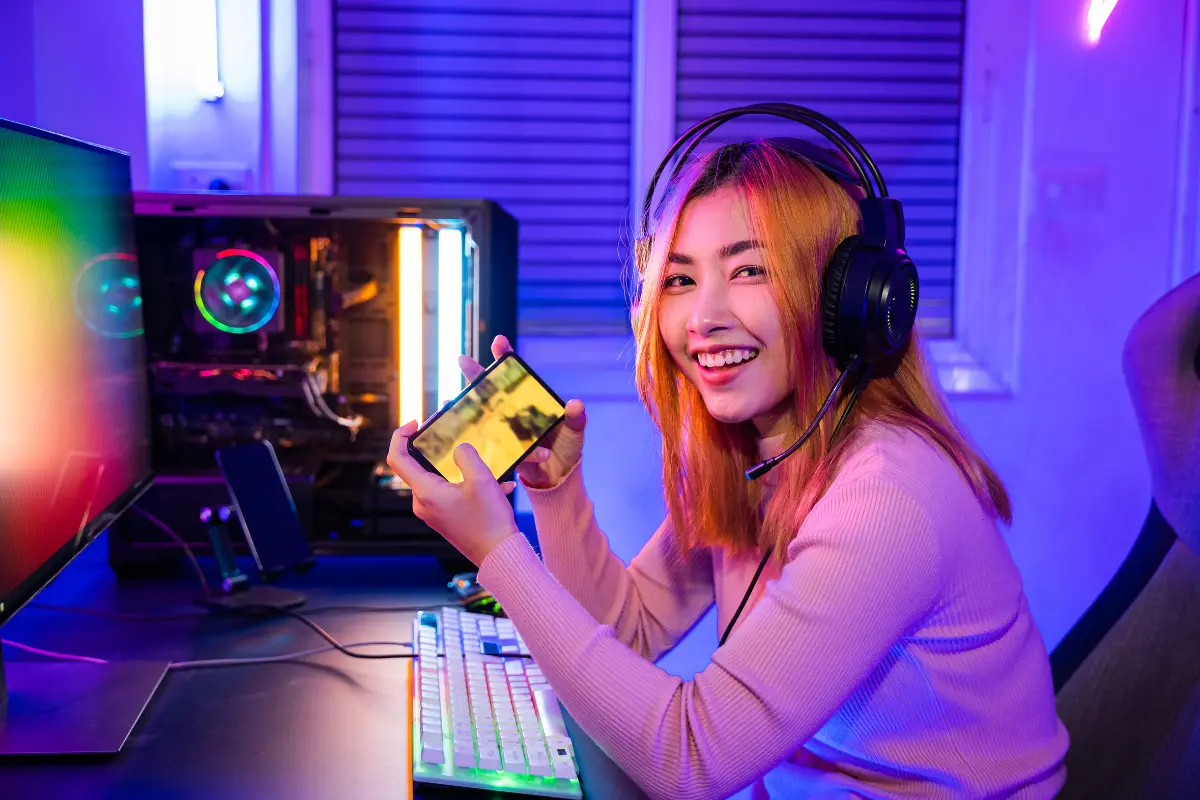
If you enjoy playing online games, there is a high chance you have thought about recording your gameplay or even streaming it live. Maybe you want to share clips on YouTube, grow a streaming channel, teach others how to play better, or simply save your best moments.
The good news is this: you do not need expensive equipment or advanced technical knowledge to start. With the right setup and a clear understanding of the process, you can record and stream online games smoothly—even if you are a complete beginner.
Why Recording and Streaming Games Is Worth It
Before getting into tools and settings, it helps to understand why so many gamers do this.
When you record or stream your games:
- You can save highlights like wins, funny moments, or clutch plays.
- You can build a personal brand as a gamer.
- You can teach others through walkthroughs and tutorials.
- You can connect with friends or viewers live.
- You may even earn money later through ads, sponsorships, or donations.
You do not need thousands of followers to start. Every successful streamer once recorded their first zero-viewer video. The key is starting the right way.
Recording vs Streaming: Understand the Difference First
Many beginners confuse these two, so let us clear this up simply.
Recording Gameplay
- Your gameplay is saved as a video file on your device.
- You can edit the video later.
- You upload it whenever you want.
- Best if you want full control and no pressure.
Streaming Gameplay
- Your gameplay is shown live to viewers.
- People can watch and chat in real time.
- You need stable internet.
- Best if you enjoy live interaction.
You can do both at the same time, but it is better to learn recording first, then move to streaming.
The Best Software to Record and Stream Games
You do not need to test dozens of tools. These are the most reliable and beginner-friendly options.
OBS Studio
OBS Studio is the most popular choice among gamers.
Why OBS is ideal for you:
- It is free and open-source.
- Works on Windows, macOS, and Linux.
- Supports both recording and live streaming.
- You can add gameplay, microphone, webcam, and overlays.
It may look slightly complex at first, but once you understand it, OBS gives you full control.
Streamlabs Desktop
Streamlabs is built on OBS but designed for beginners.
Why you may like it:
- Easier setup than OBS.
- Built-in alerts, themes, and chat boxes.
- Perfect if you want to stream quickly without much customization.
The downside is that it uses more system resources.
Xbox Game Bar
If you are on Windows:
- Press Windows + G
- You can record games instantly.
This is best for:
- Quick clips
- Low-end PCs
- No learning curve
However, it is limited and not suitable for professional streaming.
What You Need Before You Start
You do not need a studio setup. Start simple.
Basic Requirements
- A PC or laptop that can run your game smoothly
- Stable internet (especially for streaming)
- A microphone (even basic earphones work)
- Headphones (to avoid echo)
Optional but helpful:
- Webcam (for Facecam)
- Mechanical keyboard (cleaner sound)
- Second monitor (for chat)
How to Record Gameplay Step by Step (Using OBS Studio)
Let us go step by step so you do not feel lost.
Step 1: Install OBS Studio
Download and install OBS Studio. Open it and allow auto-configuration if prompted.
Step 2: Create a Scene
A scene is a layout.
- Click + under “Scenes”
- Name it “Gameplay Recording”
Step 3: Add Game Capture
- Click + under “Sources”
- Choose Game Capture
- Select your game from the list
This ensures only the game is recorded, not your full screen.
Step 4: Add Microphone Audio
- Go to Settings → Audio
- Select your microphone
- Test your voice levels
Your voice should be clear but not too loud.
Step 5: Set Recording Quality
Go to Settings → Output → Recording
Recommended beginner settings:
- Format: MP4 or MKV
- Resolution: 1280×720 or 1920×1080
- FPS: 30 (start here)
Higher quality means larger file size.
Step 6: Start Recording
Click Start Recording, open your game, and play normally.
Click Stop Recording when done.
Your video will be saved automatically.
How to Stream Online Games Live (Beginner Setup)
Once you are comfortable recording, streaming becomes easier.
Step 1: Choose a Streaming Platform
Most gamers stream on:
- Twitch
- YouTube
- Facebook Gaming
Create an account on one platform first.
Step 2: Get Your Stream Key
Your stream key connects OBS to your streaming platform.
- Go to your creator dashboard
- Copy the stream key
- Paste it into OBS → Settings → Stream
Never share this key with anyone.
Step 3: Set Streaming Resolution
For beginners:
- Resolution: 1280×720
- FPS: 30
- Bitrate: Medium (auto or default)
This reduces lag and dropped frames.
Step 4: Add Webcam (Optional)
- Add Video Capture Device
- Adjust size and position
A facecam helps viewers connect with you, but it is not mandatory.
Step 5: Go Live
Click Start Streaming
You are now live.
Speak clearly, explain what you are doing, and enjoy the process.
Streaming Console Games (PlayStation, Xbox, Switch)
If you play on console:
- You may need a capture card
- It transfers video from console to PC
A capture card:
- Connects console → PC
- Lets OBS record or stream console gameplay
- Improves video quality
This is optional if you are starting with PC games.
Common Problems You May Face (And Simple Fixes)
Game Lag While Recording
- Lower recording resolution
- Close background apps
- Use Game Capture instead of Display Capture
Audio Not Recording
- Check microphone settings
- Test levels before recording
- Avoid muted sources
Stream Buffering
- Lower stream bitrate
- Use wired internet
- Reduce FPS to 30
Do not get frustrated. These issues happen to everyone.
Tips to Improve Quality Over Time
Once you get comfortable:
- Add simple overlays
- Improve lighting
- Use noise suppression
- Learn basic video editing
- Upload highlights regularly
Consistency matters more than perfection.
The Right Mindset for Beginners
If you are just starting:
- Do not compare yourself with big streamers
- Focus on learning, not views
- Keep your setup simple
- Enjoy the game first
Recording and streaming should add joy, not pressure.
Final Thoughts
Recording and streaming online games is no longer complicated or expensive. With free tools, a simple setup, and patience, you can start today.
Begin with recording. Learn your software. Then move to streaming when you feel confident. Every improvement comes from experience, not equipment.