
This domain is for sale. Anyone interested can reach out to
marketersmagical@gmail.com.
Online Games Not Loading on Mobile? Here Are the Best Fixes That Actually Work
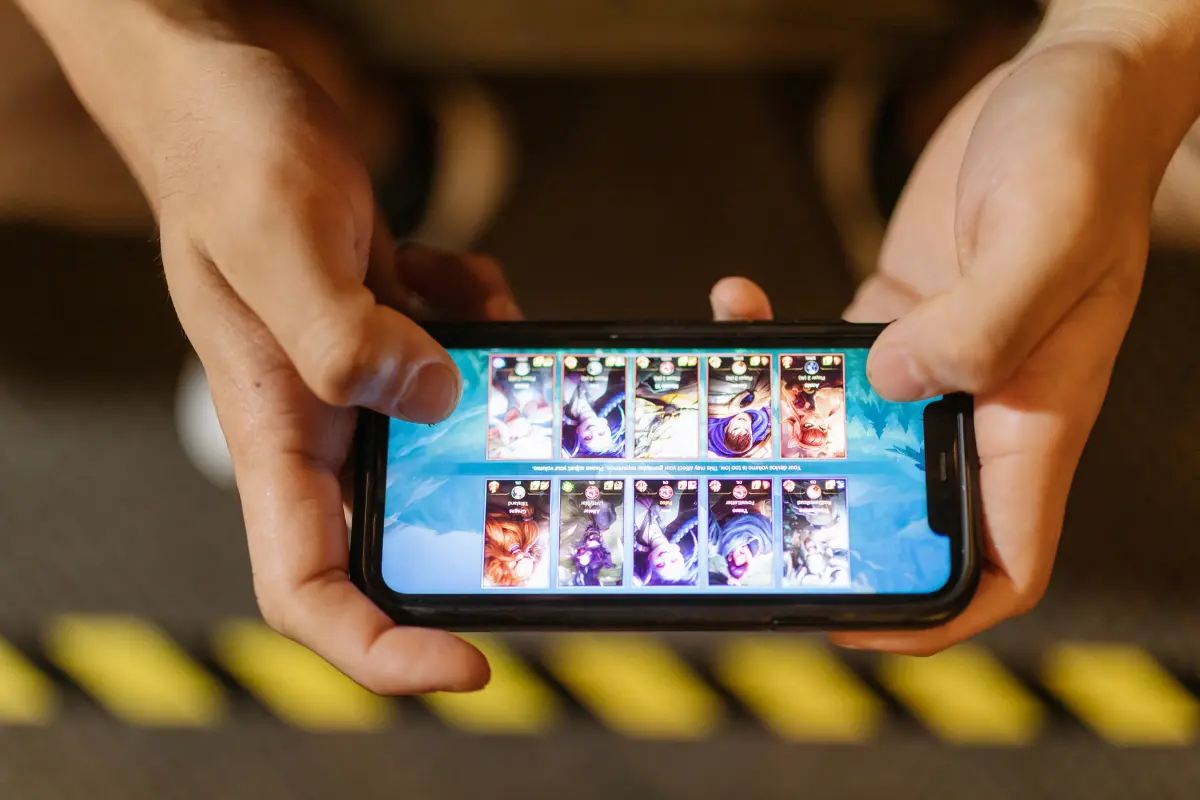
Mobile gaming has become a daily habit for millions of players. From quick puzzle games to competitive multiplayer battles, your phone is now a complete gaming device. But nothing is more frustrating than opening a game and seeing it stuck on the loading screen, crashing, or refusing to connect to the server.
If online games are not loading on your mobile, you are not alone. This problem happens on both Android and iPhone, and in most cases, it can be fixed easily once you know the real cause.
This guide explains why mobile online games fail to load and gives you practical fixes you can try step by step, even if you are not very good with technology.
Why Online Games Do Not Load on Mobile Phones
Before fixing the problem, it helps to understand why it happens. Online games depend on many things working together. If even one thing fails, the game may not load.
Some common reasons include:
- Weak or unstable internet connection
- Problems with game servers
- Outdated game or phone software
- Corrupted app cache or files
- Low storage or RAM on your phone
- Data saver or battery saver restrictions
Once you identify the cause, the solution becomes much easier.
Best Fixes for Online Games Not Loading on Mobile
Check Your Internet Connection First
Online games need a stable and continuous internet connection. Even a small network issue can stop a game from loading.
What you should do
- Try opening a website or YouTube video to check if the internet works properly.
- Switch between Wi-Fi and mobile data to see if one works better.
- Move closer to your Wi-Fi router if the signal is weak.
If your internet is slow or keeps disconnecting, the game may remain stuck on the loading screen or show a connection error.
Restart Your Phone (Simple but Effective)
Many people ignore this step, but restarting your phone can solve many hidden problems.
When you restart:
- Background apps close automatically
- Memory is refreshed
- Network settings reconnect properly
After restarting, open the game again and check if it loads normally.
Update the Game to the Latest Version
Game developers release updates to fix bugs, improve performance, and support new devices. If you are using an old version, the game may fail to connect to servers.
How to check
- Open the Google Play Store or Apple App Store
- Search for the game
- If an update button is visible, install it
Using the latest version improves compatibility and reduces loading errors.
Check If the Game Server Is Down
Sometimes, the problem is not your phone. The game’s servers may be under maintenance or facing an outage.
This usually happens:
- After a new update
- During peak player hours
- When servers are overloaded
You can check the game’s official social media pages or community forums to see if other players are facing the same issue. If servers are down, waiting is the only solution.
Clear Game Cache and Temporary Files
Over time, games store temporary files called cache. If these files get corrupted, the game may stop loading.
For Android users
- Go to Settings
- Open Apps
- Select the game
- Tap Storage
- Choose Clear Cache
Clearing cache does not delete your progress, but it removes damaged files that may block loading.
Force Stop the Game and Open It Again
If the game is running in the background and gets stuck, force stopping it can help.
What this does
- Fully closes the app
- Resets internal processes
- Removes frozen background activity
After force stopping, reopen the game and check if it loads properly.
Reinstall the Game If Nothing Else Works
If the game files are damaged, reinstalling is often the most reliable fix.
Steps to follow
- Uninstall the game from your phone
- Restart your device
- Download the game again from the official app store
Make sure your game progress is linked to an account before uninstalling, so you do not lose data.
Update Your Phone’s Operating System
Older phone software may not support newer game updates. This can cause loading errors, crashes, or black screens.
Why updates matter
- Improve system stability
- Fix security issues
- Increase compatibility with new apps
Go to your phone’s settings and install any available system updates.
Turn Off Data Saver and Battery Saver Modes
Data saver and battery saver modes limit background activity and internet usage. This can stop online games from connecting properly.
What you should check
- Turn off Data Saver
- Disable Battery Saver temporarily
- Allow the game to use background data
Once disabled, reopen the game and test the connection.
Make Sure the Game Has Internet Permission
Sometimes, apps do not have proper network permissions.
Check permissions
- Open Settings
- Go to Apps
- Select the game
- Tap Permissions
- Allow mobile data and Wi-Fi access
Without these permissions, the game will fail to connect to online servers.
Free Up Storage and RAM on Your Phone
If your phone is running low on space or memory, games may not load properly.
Why this matters
- Games need storage to load assets
- Low RAM causes slow loading or crashes
Delete unused apps, clear old files, and close background apps to improve performance.
iPhone-Specific Fixes You Can Try
If you are using an iPhone, these additional steps may help:
- Force close the game and reopen it
- Toggle Airplane Mode on and off to refresh network
- Check Screen Time restrictions that may block the game
- Restart the phone after an iOS update
These small changes often fix connection and loading issues on iOS devices.
When the Problem Is Not Fixable on Your Side
There are situations where no fix will work immediately.
These include
- Game servers under maintenance
- Bugs in newly released updates
- Device not meeting minimum requirements
In such cases, waiting for the developer to release a fix is the only option.
How to Prevent Online Games from Not Loading in the Future
You can reduce loading problems by following a few simple habits.
- Keep games and phone software updated
- Avoid installing apps from unknown sources
- Maintain enough free storage
- Use a stable internet connection
- Restart your phone regularly
These small steps improve long-term gaming performance.
Final Thoughts
When online games are not loading on mobile, it can feel annoying and confusing. The good news is that most problems are easy to fix and do not require technical knowledge.
By checking your internet, updating apps, clearing cache, and adjusting phone settings, you can solve most loading issues within minutes. If the problem is server-related, patience is the only solution.
Mobile gaming should be smooth and enjoyable. With the fixes shared above, you can get back to playing without unnecessary stress.